
[ GoHighLevel ]
GoHighLevel Setup Checklist: 10 Steps to a CRM That Actually Books Calls
Most GoHighLevel accounts don’t fail because of the software — they fail because of the order things were set up in. Here’s the exact sequence we use on client builds.
We build the funnels, stores and CRMs we write about — this isn't outsourced content.
GoHighLevel can replace five or six tools at once — CRM, funnels, calendars, SMS, email and reviews. That’s exactly why so many accounts end up messy. People open the software, start building a funnel on day one, and six weeks later they have leads with no tags, a pipeline nobody updates, and texts that never get delivered.
After setting up GoHighLevel for coaches, clinics, real estate teams and agencies, we’ve learned that the order you set things up in matters more than any single feature. This checklist walks through that order, step by step, so your account works like a sales system instead of a pile of disconnected pieces.
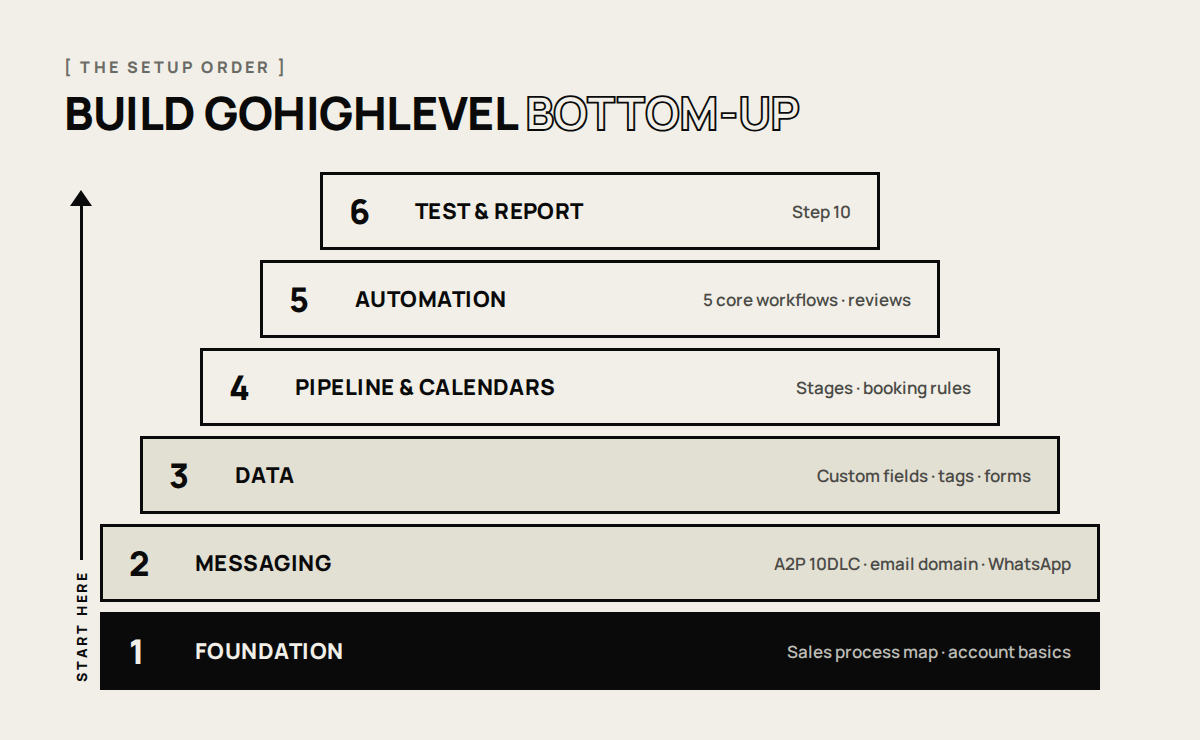
1. Map your sales process before you touch the software
Write down, on one page, how a stranger becomes a customer in your business today. Where do leads come from? What is the first thing that should happen when one arrives? What counts as “qualified”? What happens after someone books — and after they don’t show up?
This takes an hour and saves weeks. Every pipeline stage, tag and workflow you build later should trace back to a line on this page. If it doesn’t, you probably don’t need it.
2. Get the account basics right
Inside your sub-account, fill in the business profile completely — legal name, address, website and support email. Some of these details are reused in message templates and compliance registrations, so gaps here cause problems later.
- Set the time zone first. A wrong time zone quietly breaks calendar availability and reminder timing.
- Add team members with the right roles. Give people access to what they need, not full admin by default.
- Decide who owns leads. If more than one person works leads, plan how they’ll be assigned before you build workflows.
3. Set up phone and email so messages actually get delivered
This is the step most DIY setups skip, and it’s the reason “my automations aren’t working” is so common. The workflow fires — the message just never reaches the customer.
- Texting US numbers? Complete A2P 10DLC registration (your brand and your use case) for the phone numbers you text from. Unregistered business texting to US numbers gets filtered or blocked by carriers.
- Use a dedicated sending domain for email, such as mail.yourbusiness.com, and add the SPF, DKIM and DMARC records your provider gives you. This is what keeps you out of spam folders.
- Serving customers in India or other WhatsApp-first markets? Consider connecting WhatsApp too — for many audiences it gets far faster replies than SMS or email.
4. Plan custom fields and tags with a naming system
Custom fields store facts about a contact (budget, service wanted, city). Tags mark what happened to them (downloaded guide, no-show, became customer). Decide both up front and name them consistently — for example, tags that start with source-, interest- or status-.
A clean naming system is what makes filtering, reporting and automation easy six months from now, when you have thousands of contacts instead of fifty.
5. Build a pipeline your team will actually use
Keep it short — usually five to seven stages. Name each stage after something the customer did, not something your team feels. “Booked call” and “Proposal sent” are clear; “Warm” and “Hot” mean different things to different people.
- New lead
- Contacted
- Call booked
- Proposal sent
- Won
- Lost (with a reason)
Then let automation move cards wherever it can. A pipeline that depends on people remembering to drag cards will be out of date within a month.
6. Configure calendars to reduce no-shows
- Set real availability, plus buffer time between meetings.
- Add a minimum notice period so nobody books a call five minutes from now.
- Use round-robin booking if several people take calls.
- Ask two or three qualifying questions on the booking form — not ten.
- Connect the calendar to Google or Outlook so double-bookings can’t happen.
7. Build forms and funnels that feed clean data
Every form field should map to a custom field you created in step 4. Every page should have one job — usually to get a booking or a form submission. If you want help building pages designed to convert, see our landing page and funnel service.
Add UTM parameters to every ad and email link, so you can see which source each lead came from inside the CRM.
8. Launch the 5 workflows every account needs
You don’t need 40 workflows on day one. These five cover most of the revenue impact:
- Speed-to-lead: an instant text and email when a form comes in, plus a task for your team to call. Responding in minutes rather than hours is one of the biggest easy wins in sales.
- Missed-call text-back: if you miss a call, the caller gets a text right away. It keeps leads from calling your competitor next. Here’s how missed-call text-back works, with message templates.
- Appointment reminders: a confirmation, then reminders a day before and an hour before.
- No-show recovery: if someone misses the call, send a friendly rebooking link automatically.
- Review request: after a job is marked won or complete, ask happy customers for a Google review.
9. Connect reviews and your Google Business Profile
Connect your Google Business Profile so reviews and messages show up in the same inbox as everything else. A steady flow of fresh reviews helps you rank in local search and builds trust with people who find you there. Our local SEO checklist covers the rest of what it takes to rank in Google Maps.
10. Test everything, then set up reporting
Before sending real traffic, run a test contact through every path: submit each form, book and cancel a call, miss a call, and mark a deal won. Check that every text and email arrives, that tags are applied and that cards move stages.
Then build one simple dashboard: new leads by source, calls booked, show rate and deals won. Those four numbers tell you where the system is leaking.
Common GoHighLevel setup mistakes
- Building funnels before deciding what data you need to collect.
- Skipping A2P registration or email domain setup, then wondering why messages don’t arrive.
- Creating dozens of tags with no naming system.
- Turning on workflows without testing them with a real test contact.
- Copying a snapshot without adapting it to how your business actually sells.
Should you just use a snapshot?
Snapshots — pre-built GoHighLevel accounts you can import — are a great starting point. They save hours of building pages and workflows. But a snapshot is built for someone else’s business. You still need to work through this checklist: adjust the pipeline, rewrite the messages, register your numbers and test everything. Treat a snapshot as a head start, not a finished system. If you’re still choosing a plan, see GoHighLevel pricing explained.
Frequently asked questions
A focused setup for a single business — pipeline, calendar, a few funnels and the core workflows — usually takes one to three weeks. Phone number and messaging registrations can add waiting time, which is why we start them first.
If you send business text messages to US phone numbers from a standard local number, yes. Without it, carriers can filter or block your messages. If you only message customers outside the US, the rules are different and WhatsApp is often the better channel.
Yes — the software is built for it, and this checklist gives you the right order. Many businesses bring in an agency when they want it done faster, or when they need messaging compliance, integrations or multi-location setups handled properly the first time.
Start with speed-to-lead and missed-call text-back. They protect leads you are already paying for, so they tend to pay off fastest. Appointment reminders come next.
[ Tags ]
- GoHighLevel
- CRM Setup
- Marketing Automation
- A2P 10DLC
- Workflows
- Lead Generation
[ Need a hand? ]
Let Us Build It For You.
20 minutes, no pressure — we’ll look at your setup and tell you honestly what to fix first.
[ Keep reading ]
[ Shopify ]
Shopify Apps Every Indian Store Needs (and the Ones to Skip)
Most Indian Shopify stores install too many apps, then wonder why the store is slow and the monthly bill keeps growing. Here’s what you actually need, category by category.
[ Shopify ]
Shopify SEO Checklist for New Stores: 14 Steps Before and After Launch
Shopify handles a lot of SEO basics for you, but not the parts that actually win rankings. This checklist covers what to set up before launch and what to do in your first 90 days.