
[ GoHighLevel ]
GoHighLevel Snapshots: What They Are and How to Use Them
A snapshot lets you copy a finished GoHighLevel setup into another account in minutes. Here’s what it copies, what it doesn’t, and how to use snapshots safely.
We build the funnels, stores and CRMs we write about — this isn't outsourced content.
GoHighLevel snapshots are one of the main reasons agencies and multi-location businesses choose the platform. Build a working setup once — pipeline, calendars, forms, funnels, emails and workflows — and you can copy it into another account in a few minutes instead of rebuilding it by hand.
That speed comes with a catch. A snapshot copies structure, not the things that make an account actually work for a specific business: its phone numbers, its connected integrations, its contacts. Load a snapshot without knowing where that line sits and you get an account that looks finished but doesn’t send a single message. This guide explains what snapshots are, what they carry over, and the step-by-step way we use them on client builds.
What is a GoHighLevel snapshot?
A snapshot is a reusable template of a sub-account’s setup. Remember that in GoHighLevel, each business or location lives in its own sub-account — its own CRM, calendars, funnels and automations. A snapshot captures the building blocks from one sub-account so you can drop them into a new or existing one.
One point confuses a lot of people: you don’t build a snapshot directly. You build and test a normal sub-account first, then create a snapshot *from* it. The sub-account is your master copy; the snapshot is the photo you take of it.
Snapshots are managed at the agency level (under Account Snapshots in the agency view), which is why they matter most to agencies and to businesses running several locations. If you’re still deciding which plan fits how many sub-accounts you need, our guide to GoHighLevel pricing walks through that first.
What a snapshot copies — and what it leaves behind
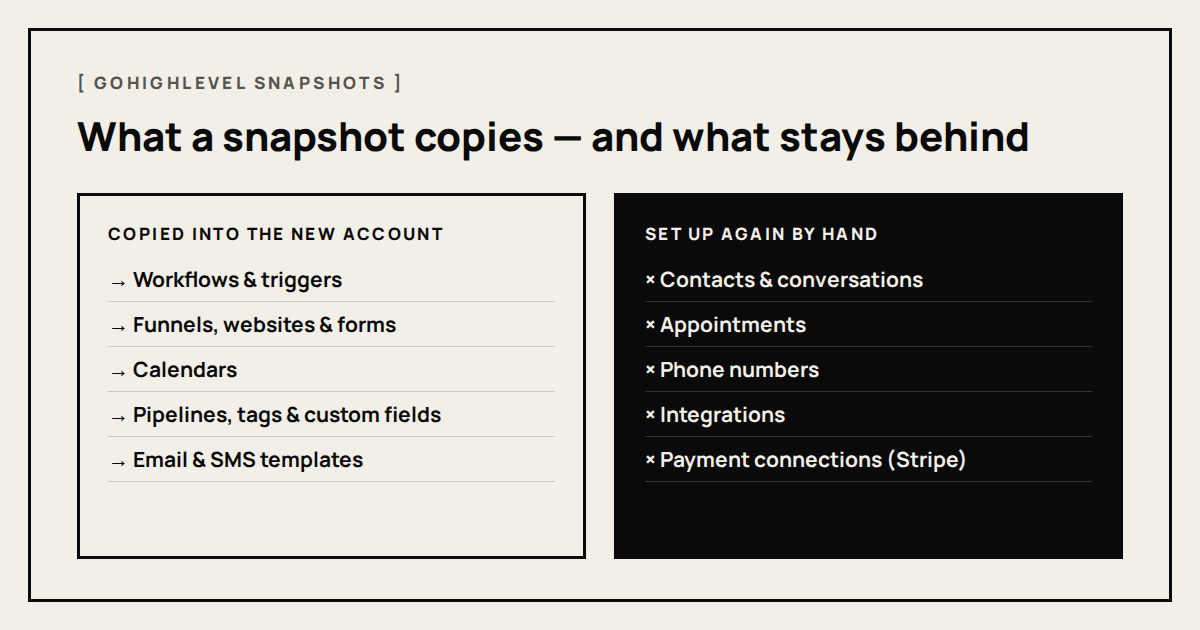
According to HighLevel’s own help documentation, snapshots cover dozens of asset types. The ones most businesses care about are:
- Automation: workflows, triggers and AI agents.
- Pages: funnels, websites, landing pages and forms.
- Scheduling: calendars and their settings.
- CRM structure: pipelines, tags, custom fields and smart lists.
- Content: email and SMS templates, campaigns, blogs, documents and memberships.
- Reporting: dashboards and custom reports.
Just as important is what does not come across. Snapshots deliberately leave out live account data and anything tied to a login or a paid service:
- Contacts, conversations, messages and appointments.
- Phone numbers assigned to the account.
- Integrations and third-party connections, including payment connections like Stripe.
- Some items that need re-authentication or aren’t supported, such as certain ad lead forms.
When GoHighLevel snapshots make sense
Snapshots pay off whenever you’d otherwise build the same thing more than once:
- Agencies with a niche. If you serve many clinics, gyms or real estate teams, one well-tested snapshot becomes the starting point for every new client.
- Multi-location businesses. Each branch gets the same pipeline, forms and follow-up, so reporting is comparable across locations.
- Rebuilding or cleaning up. You can copy a proven setup into a fresh sub-account instead of untangling a messy one.
- Backups before big changes. Taking a snapshot before a major rework gives you a copy of the setup to fall back on.
For a single business with one location, snapshots are less important day to day. You’ll mostly meet them when someone offers you a pre-built snapshot to install — more on that below.
Step 1: Build a master sub-account worth copying
A snapshot is only as good as the account it comes from. Before you create one, get the master sub-account genuinely finished and tested. Our GoHighLevel setup checklist covers the order we build in; for a snapshot master, pay extra attention to these points:
- Use a clear naming system for tags, custom fields, workflows and pipelines. Names are copied exactly, and messy names multiply across every account you load.
- Use custom values instead of hard-coded details. Put the business name, phone number, address and booking link into custom values, and reference those in emails, SMS and pages. Then each new account only needs its values filled in, not every template edited.
- Remove test junk. Old draft funnels and half-finished workflows will be copied too.
- Test every workflow end to end with a test contact before snapshotting — forms, bookings, reminders and follow-ups.
Step 2: Create the snapshot
- In the agency view, open Account Snapshots and choose to create a new snapshot.
- Give it a descriptive name — for example, “Dental clinic – core setup v1”. Adding a version number now saves confusion later.
- Pick the master sub-account as the source.
- Select everything, or expand each category and choose only the assets you want to include.
- Create it. If any individual assets fail, HighLevel lets you retry just those items instead of starting over.
A tip from experience: smaller, focused snapshots are often easier to manage than one giant one. A “core CRM” snapshot and a separate “ads landing pages” snapshot can be loaded independently, depending on what each client needs.
Step 3: Load a snapshot into a sub-account
There are two ways to apply a snapshot:
- When creating a new sub-account — choose the snapshot during setup and the account starts with everything already in place.
- Into an existing sub-account — from the sub-account’s management screen, use the option to load a snapshot, pick it, and choose which assets to import.
When loading into an existing account, GoHighLevel checks for conflicts — for example, a workflow or form with the same name already there. For each one you choose to override (replace the existing version) or skip (keep what’s there). Nothing in the account is replaced unless you choose to override, but read this screen carefully: overriding a workflow a client has customised will undo their changes.
Step 4: The after-loading checklist
This is the step that separates a working account from a pretty shell. After loading a snapshot, go through the new sub-account and set up everything the snapshot couldn’t bring:
- Fill in the business profile and time zone. A wrong time zone breaks calendar slots and reminder timing.
- Update custom values — business name, phone, address, links and any other details your templates use.
- Buy or port a phone number and complete any texting registration the destination country requires.
- Set up the email sending domain with SPF, DKIM and DMARC so emails reach the inbox.
- Reconnect integrations — calendars, payment accounts, Google Business Profile, Facebook and any others.
- Assign users to calendars, round-robins and workflow actions that notify or assign a team member.
- Review every workflow for references to people, numbers or links from the master account, then publish the ones that should be live.
- Run a test lead through the whole journey — form, instant reply, booking, reminder and follow-up.
Pay special attention to speed-to-lead automations such as missed-call text-back. They depend on a working phone number, so they’re often the first thing to silently fail after a snapshot load.
Sharing and importing GoHighLevel snapshots
Snapshots can also move between agencies. The owner creates a share link and the recipient imports the snapshot into their own library, then loads it into a sub-account. HighLevel offers several link types, including:
- Permanent links that can be used repeatedly.
- One-time links, including links sent by email, that work once.
- Restricted links that only work for a specific agency or a specific sub-account.
Keep in mind that sharing, importing and loading are three separate actions. Sharing gives access, importing adds it to your library, and nothing changes in any account until you load it.
Before installing a snapshot someone else built
Pre-built snapshots are sold and shared widely, and some are genuinely useful. Before loading one into a live account:
- Load it into an empty test sub-account first, never straight into a client’s live account.
- Open every workflow and check what it sends, to whom, and when.
- Rewrite the messaging for the actual business — generic templates rarely convert as well as copy written for your audience.
- Delete anything you won’t use, so the account stays easy to maintain.
Updating snapshots and pushing changes
Snapshots don’t update themselves. When you improve the master account — say, a better follow-up sequence — you refresh the snapshot so it includes the new version of those assets.
You can then push the update to sub-accounts that already use the snapshot, choosing which accounts and which assets receive the change. Two limits to know: pushes only reach sub-accounts inside your own agency (other agencies need to re-import from a new link), and you can control per sub-account whether it receives pushes at all.
Because a push can replace a workflow a client relies on, treat it like a software release: change the master, test it, push to one account, check it, then roll out to the rest.
Common GoHighLevel snapshot mistakes
- Snapshotting an untested account and copying its bugs into every client.
- Hard-coding business names and phone numbers into templates instead of using custom values.
- Assuming phone numbers, integrations and payment connections came across — they don’t.
- Overriding customised client workflows during a load or push.
- Installing a third-party snapshot straight into a live account without reviewing it.
- Keeping one snapshot with no version names, so nobody knows which accounts run which setup.
Snapshots are a genuine time-saver when the master account is solid and the after-loading steps are done properly. If you’d like a tested setup built for your business or niche — or help turning your agency’s best build into a clean, reusable snapshot — our GoHighLevel service covers setup, migration and automation. And if the snapshot includes landing pages, we can make sure they’re built to convert through our funnel and landing page service.
Frequently asked questions
A snapshot is a reusable template of a sub-account’s setup — workflows, funnels, forms, calendars, pipelines, custom fields, templates and more. You create it from a finished sub-account and load it into new or existing sub-accounts to avoid rebuilding everything by hand.
No. Snapshots copy setup, not live data. Contacts, conversations, appointments, phone numbers and connected integrations stay in the original account and need to be set up separately in the new one.
Not unless you choose to. When loading into an existing sub-account, GoHighLevel shows any conflicting assets and lets you override or skip each one. Skipping keeps your current version.
Yes. Refresh the snapshot so it includes your changes, then push the update to selected sub-accounts in your agency, choosing which assets to send. Accounts in other agencies need to re-import from a new share link.
They can save time, but treat them as a starting point. Load them into a test sub-account first, review every workflow, rewrite the messaging for your business and remove anything you won’t use.
[ Tags ]
- GoHighLevel
- Snapshots
- Agencies
- CRM Setup
- Workflows
[ Need a hand? ]
Let Us Build It For You.
20 minutes, no pressure — we’ll look at your setup and tell you honestly what to fix first.
[ Keep reading ]
[ Shopify ]
Shopify Apps Every Indian Store Needs (and the Ones to Skip)
Most Indian Shopify stores install too many apps, then wonder why the store is slow and the monthly bill keeps growing. Here’s what you actually need, category by category.
[ Shopify ]
Shopify SEO Checklist for New Stores: 14 Steps Before and After Launch
Shopify handles a lot of SEO basics for you, but not the parts that actually win rankings. This checklist covers what to set up before launch and what to do in your first 90 days.