
[ Shopify ]
How to Improve Shopify Conversion Rates: A Step-by-Step Guide
More traffic won’t help if visitors don’t buy. Here’s how to find where your Shopify store loses shoppers, and the fixes that usually matter most at each step.
We build the funnels, stores and CRMs we write about — this isn't outsourced content.

Short answer: to improve Shopify conversion rates, first find the step where shoppers drop off — product page, cart or checkout — using Shopify’s own funnel numbers. Then fix that step: speed and mobile layout for bounces, product pages and trust for low add-to-cart, delivery costs and express payments for cart drop-off, and checkout settings for lost checkouts. Change one thing at a time and measure it.
Most stores try random tweaks — a new colour, a pop-up, another app. This guide gives you an order to work in, so every change targets the place you’re actually losing sales.
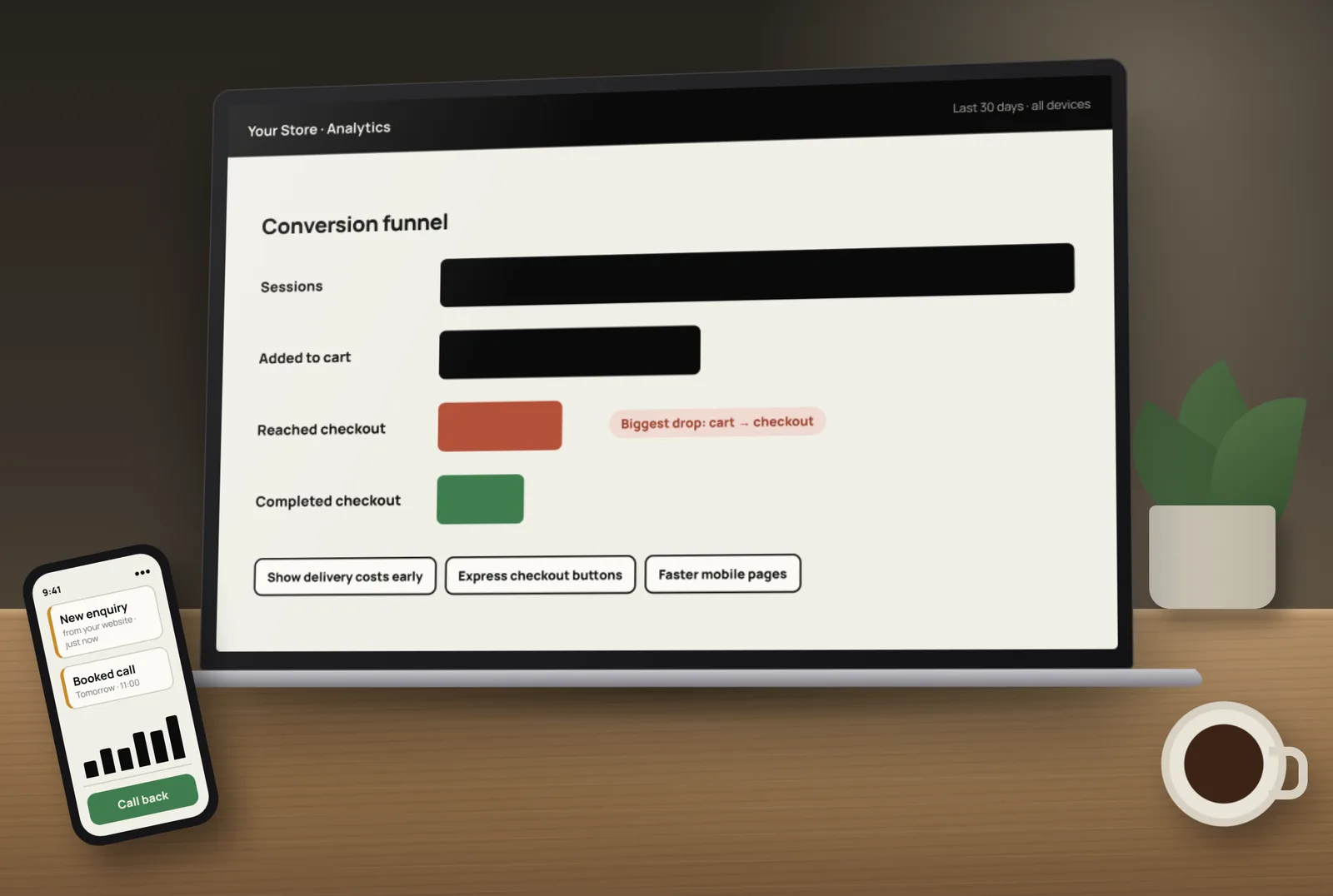
Step 1: Understand your Shopify conversion rate
Shopify defines conversion rate as sessions that completed checkout divided by all sessions. It also tracks the steps in between, which tell you far more:
- Added to cart rate — sessions with a cart addition ÷ all sessions.
- Reached checkout rate — sessions that reached checkout ÷ all sessions.
- Checkout conversion rate — sessions that completed checkout ÷ sessions that reached checkout.
- Bounce rate — sessions that ended after one page.
Step 2: Find where shoppers drop off
- High bounce rate → the landing page or speed is the problem.
- Low added-to-cart rate → product pages aren’t convincing.
- Many carts but few checkouts → surprise costs, slow cart or weak trust.
- Many checkouts but few orders → payment, shipping or checkout friction.
- Mobile much worse than desktop → a mobile layout or speed problem.
Step 3: Fix speed and mobile first
Most Shopify traffic is on phones, and slow pages lose shoppers before they see a product. Google’s Core Web Vitals measure loading, responsiveness and layout stability — useful targets for any store.
- Compress and resize images; use Shopify’s built-in image sizes.
- Remove apps you no longer use, and their leftover code.
- Avoid heavy sliders and auto-playing videos above the fold.
- Test your top pages on a real mid-range phone over mobile data.
Our Shopify speed optimisation checklist covers each fix in detail.
Step 4: Make product pages answer every question
- Clear photos from several angles, plus scale and in-use shots.
- A short, benefit-led description first, details below.
- Price, delivery time and returns visible near the Add to cart button.
- Size guides, ingredients or specs where buyers need them.
- Genuine reviews from real customers, shown honestly.
- One clear Add to cart button, easy to tap on mobile.
- Variant selectors that show stock and update the photo.
Step 5: Build trust before people ask
- Easy-to-find shipping, returns and contact pages.
- Real contact details — phone, email, WhatsApp or chat.
- An About page that shows who runs the store.
- Payment options shoppers recognise.
- No fake urgency, fake stock counts or invented reviews — they damage trust and can break consumer law.
Step 6: Remove friction in the cart
- Show delivery costs early — surprise costs are a common reason for leaving.
- Offer accelerated checkout buttons. Shopify’s accelerated checkouts such as Shop Pay, Apple Pay, Google Pay and PayPal fill in saved details for returning customers.
- Keep the cart simple — editable quantities, clear totals, one main button.
- Add a free-shipping threshold message if you offer one.
- Limit cart upsells to one relevant suggestion.
Step 7: Tidy up checkout
Shopify’s checkout is already well optimised, so focus on settings: ask only for the fields you need, brand it to match your store, and make the thank-you page useful. Our Shopify checkout customisation guide explains what each plan can change. For Indian stores with cash on delivery, see our COD and RTO guide.
Step 8: Recover the shoppers who leave
Even a great store loses most visitors on the first visit. Abandoned checkout emails, browse reminders and email sign-ups bring some of them back. Our abandoned cart recovery guide shows how to set these up.
Step 9: Test changes properly
- Change one thing at a time on your highest-traffic pages.
- Write down the date and what changed.
- Compare the same metric before and after over full weeks, by device.
- Watch out for seasonal effects, sales and ad changes that can skew results.
- Keep what works, undo what doesn’t.
Common Shopify conversion mistakes
- Judging the store by one overall conversion rate instead of the funnel steps.
- Installing many “conversion” apps that slow the store down.
- Hiding delivery costs until checkout.
- Poor mobile layouts, especially for menus and filters.
- Running ads to the homepage instead of a relevant product or collection.
- Changing many things at once, so nobody knows what worked.
Want an expert review of your store? Tocal’s conversion rate optimisation service looks at your Shopify funnel, speed, product pages and checkout, then fixes and tests the biggest problems first. We also build and improve stores through our Shopify service — with fast delivery and reasonable pricing. Book a free call to find your biggest leak.
Frequently asked questions
Find the funnel step where shoppers drop off using Shopify’s analytics, then fix that step: speed and mobile layout for bounces, product pages and trust for low add-to-cart, delivery costs and express payments in the cart, and settings in checkout. Change one thing at a time and measure it.
Shopify divides sessions that completed checkout by all sessions. It also reports added-to-cart rate, reached-checkout rate and checkout conversion rate, which show where shoppers drop off.
It varies widely by product, price, country and traffic source, so averages can mislead. Compare your store with its own past performance, by device and traffic source, and aim to improve each funnel step.
Common reasons are surprise delivery costs, slow or confusing carts, missing payment options, weak trust signals or simply comparing prices. Show costs early, add accelerated checkout buttons and follow up with abandoned checkout emails.
They help returning customers check out faster because their details are saved. Shopify supports accelerated checkouts such as Shop Pay, Apple Pay, Google Pay, Amazon Pay and PayPal, depending on your payment setup.
Yes. Slow pages, especially on phones, lose shoppers before they see a product. Compress images, remove unused apps and test your top pages on a real phone.
Only when they solve a specific problem you have measured. Many apps add code that slows the store. Use Shopify’s built-in features first.
It depends on your traffic. Stores with more visitors can see changes in their numbers sooner. Always compare full weeks and account for sales and ad changes.
Usually not. Shopify’s checkout is already optimised, so most losses happen earlier — on product pages, in the cart or from slow mobile pages. Check your funnel to be sure.
Yes. We review your funnel, speed, product pages, cart and checkout, fix the biggest issues first and measure the results.
[ Tags ]
- Shopify
- CRO
- Conversion Rate
- E-Commerce
- Product Pages
[ Need a hand? ]
Let Us Build It For You.
30 minutes, no pressure — we’ll look at your setup and tell you honestly what to fix first.
[ Keep reading ]

[ SEO ]
Local SEO for Jaipur Businesses: How to Show Up in Google Maps
Most Jaipur customers search on their phone and pick from the three businesses in the Google Maps box. Here’s how to earn a place there, step by step.

[ E-Commerce ]
Shopify vs WooCommerce for Indian D2C Brands: Full Cost Comparison
For an Indian D2C brand, the real difference between Shopify and WooCommerce is not the plan price — it’s what you pay on every order as you grow. Here’s the full picture.